

In today’s professional landscape, the home office isn’t just a convenience; for many, it’s the nerve center of their livelihood. And what keeps that nerve center humming along smoothly? A rock-solid, reliable internet connection. This is where your Wi-Fi router steps in as the unsung hero, and among the many contenders, TP-Link has carved out a significant niche. But with so many options out there, the big question is: are TP-Link Wi-Fi routers truly the best choice for your home office in 2026? Let’s dive in and explore.
The Evolving Home Office: Why Your Router Matters More Than Ever
Gone are the days when a basic router could handle a single laptop and a smartphone. In 2026, home offices are complex digital hubs. We are now juggling 4K video conferences, massive cloud-based data syncs, AI-driven applications that require low latency, and an ever-growing array of smart office IoT devices.
Each of these activities demands bandwidth, stability, and cruciallycongestion management. A sub-par router in 2026 leads to more than just buffering ,it leads to AI tool timeouts, dropped professional calls, and a significant dip in productivity. For those running businesses from home, a flaky connection directly impacts your professional reputation. This is why investing in a high-quality router tailored to Wi-Fi 7 standards is now paramount.
Why TP-Link? A Quick Look at Their Reputation
TP-Link has been a dominant force in the networking world for years, known for offering a wide range of devices that often hit a sweet spot between performance, features, and affordability. They cater to a broad spectrum of users, from budget-conscious consumers to tech enthusiasts seeking cutting-edge performance. Their reputation for user-friendly interfaces and consistent firmware updates also adds to their appeal.
Understanding TP-Link’s Offerings: From Archer to Deco
TP-Link’s router lineup is quite diverse. You’ll primarily encounter two main series that are particularly relevant for home office users:
- TP-Link Archer Series (Traditional Routers): These are your classic, standalone Wi-Fi routers. They come in various specifications, from entry-level models perfect for basic Browse to high-performance units designed for heavy network traffic. Many Archer models boast features like multiple external antennas for broader coverage, Beamforming technology for focused signals, and robust Quality of Service (QoS) controls to prioritize traffic for your work applications.
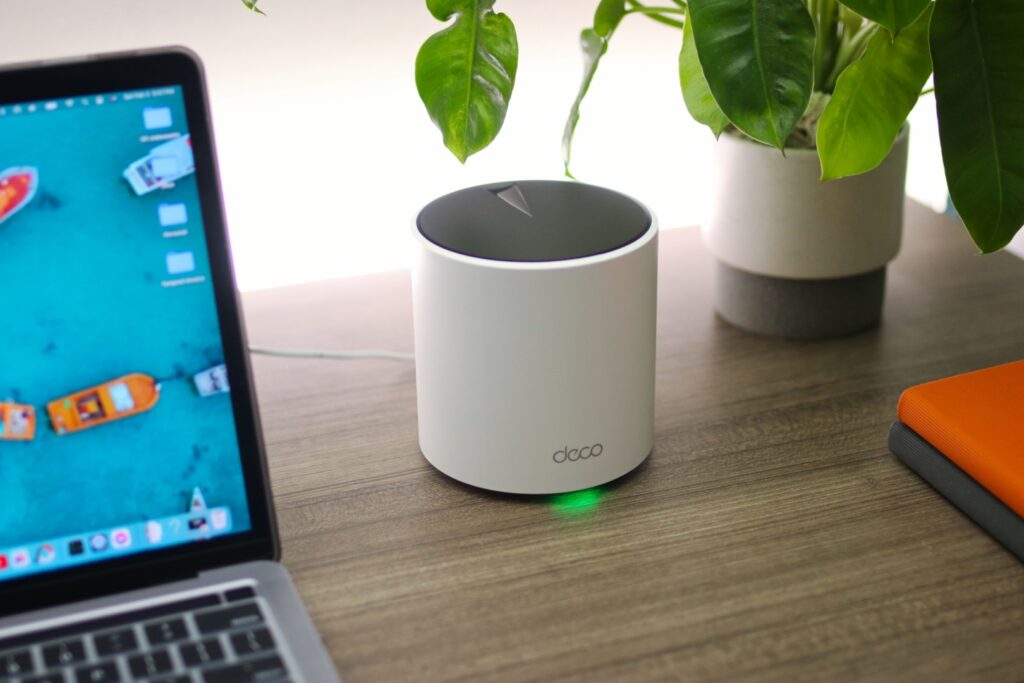
- TP-Link Deco Series (Mesh Wi-Fi Systems): For larger homes or spaces with Wi-Fi dead zones, the Deco mesh systems are a game-changer. Instead of a single router, Deco utilizes multiple units strategically placed around your home to create a seamless, unified Wi-Fi network. This eliminates dead spots and ensures consistent, strong signal strength throughout your entire workspace, which is especially beneficial if your home office is far from your main router or on a different floor.
Key Features to Look For in a Home Office Router
When evaluating any router, especially for a demanding home office environment, here’s what should be on your checklist:
Wi-Fi 7 (802.11be) Support: In 2026, Wi-Fi 7 is the standard. It offers 320MHz channels (double the width of Wi-Fi 6), which is essential if you live in a crowded apartment building with lots of interference.
Tri-Band or Quad-Band: A dedicated 6GHz band acts like a private highway for your work laptop, away from the “traffic jams” of your family’s smartphones and smart TVs.
Beamforming and MU-MIMO: Beamforming directs Wi-Fi signals directly to your devices, improving signal strength. MU-MIMO (Multi-User, Multiple-Input, Multiple-Output) allows the router to communicate with multiple devices simultaneously, rather than sequentially, boosting efficiency.
Processor and RAM: A more powerful processor and ample RAM enable the router to handle more data and multiple connections without bogging down.
Ethernet Ports (Gigabit): For desktop computers, network-attached storage (NAS) devices, or printers, wired connections offer the most stable and fastest performance. Make sure the router has enough Gigabit Ethernet ports.
USB Ports: USB 2.0 or 3.0 ports can be useful for connecting external hard drives to create a simple network storage solution or for sharing a printer.
Robust Security Features: Look for WPA3 encryption, built-in firewalls, and parental controls (even if it’s just for peace of mind or to manage family usage during work hours).
Quality of Service (QoS): This allows you to prioritize specific applications e.g., video conferencing software over others, ensuring your critical work tasks get the bandwidth they need.
Ease of Setup and Management: A user-friendly interface and a companion app (like TP-Link’s Tether app for Archer and Deco app for Deco) can make setup and ongoing management. router reviews.

TP-Link for Home Offices: The Verdict in 2026
So, are they the best? The answer is a resounding often, yes. For a single room office, a high end Archer BE series router provides the best bang for your buck. It gives you the raw speed of Wi-Fi 7 and the heavy duty processing power to handle 50+ devices. Their Tether App remains one of the easiest to use, allowing you to reboot your router or check your signal strength directly from your phone.
If your workspace is prone to signal drops, the Deco BE65 or BE85 systems are arguably the superior choice. They blanket your home in a Wi-Fi bubble, ensuring consistent, low-latency performance. Furthermore, TP-Link’s commitment to regular security patches helps keep your professional data safe from emerging 2026 cyber threats.
If your home office is spread across multiple rooms, you have a larger house, or you consistently experience dead zones, a TP-Link Deco mesh system is arguably the superior choice. The Deco X50, X60, or even the Deco BE series for cutting-edge performance, can blanket your entire home with seamless Wi-Fi, ensuring your video calls never drop and large files transfer without a hitch, no matter where you are in your house. The ability to easily expand your network by adding more Deco units is a major advantage.
Furthermore, TP-Link’s commitment to regular firmware updates helps ensure their routers remain secure and perform optimally over time. They also provide excellent customer support resources techradar.
While other brands certainly offer competitive products, TP-Link’s consistent delivery of value-packed routers makes them a top contender for the discerning home office professional. You can often find great deals on these devices, and it’s always worth checking out resources like Deep Dive Insight coupons to snag a better price. For more in-depth technology insights and product reviews, be sure to visit Deep Dive Insight.
Frequently Asked Questions
What’s the main difference between TP-Link Archer and Deco for a home office?
Archer is a single, powerful tower best for smaller spaces. Deco is a team of smaller units that work together to cover a large house. If your office is more than two walls away from your router, go with Deco.
Do I truly need Wi-Fi 7 for my office in 2026?
If you deal with large files video editing, 3D rendering or frequent video calls, yes. Wi-Fi 7’s lower latency makes lag almost non-existent. If your work is mostly emails and documents, Wi-Fi 6 is still sufficient but less future-proof.
How important is a 10G port?
It’s only important if your Internet plan is faster than 1,000 Mbps 1 Gbps. If you have a multi gigabit fiber connection, a 10G port is the only way to actually use the speed you are paying for.
Can I use my old modem with a new TP-Link Wi-Fi 7 router?
Yes, as long as the modem has an Ethernet output. However, to get the best speeds, you might want to ask your ISP for a 2.5G or 10G modem to match your new router’s capabilities.
Are TP-Link routers difficult to set up?
No. Using the Tether Archer or Deco app, most users can get their office online in under 10 minutes. The apps use Bluetooth to find the router and guide you through the process step-by-step.